1In one sentence
Give Seedance a photo as the first frame, describe only the movement, and it makes that exact picture come alive; give it a second photo as the last frame and it travels from one to the other.
2New words
- Start frame — the picture the clip begins on. Also called "first frame" or, on Dreamina, "reference image".
- End frame — a second picture the clip must finish on. Every Seedance version from 1.5 Pro up accepts one, though the slot is not always shown on the page.
- Reference — a picture, clip or sound you attach not as a frame but as an example: "this person's face", "this product", "this camera move". On Higgsfield this is the References button next to the Start frame slot. Seedance 2.0 and 2.5 accept several at once; the number goes up with the version, and Seedance 2.5 takes up to 50 (on Dreamina: up to 30 pictures, 10 clips and 10 sounds).
- Upload — putting your file on the host's website so the model can see it.
3Why you would want it
Text-to-video invents a bakery; image-to-video uses Sam's real counter, real loaf and real logo. For a business this matters: customers should recognize the shop. It also saves credits, because the model no longer has to guess what things look like, so fewer takes are wasted.
4Try it now
- Take a sharp, well-lit photo of a real thing on a real surface (a loaf, a cup, a plant). Avoid blur and clutter.
- On the Seedance page, click the Start frame slot above the prompt box and upload the photo. (If you made the picture on the same site, open it and click Turn to video; it lands in the slot by itself.)
- In the prompt, describe only what moves: The camera slowly pushes in. Steam rises from the bread. Light stays the same. Nothing else changes. Do not describe the photo itself; the model can see it.
- Choose the Draft version, 5 seconds, and generate.
- Optional: take a second photo from closer and upload it as the end frame, if the page shows that slot. Generate again. The clip will now travel from the wide view to the close one.
5What you will see
Your photo sitting in the start slot, with the prompt beside it:
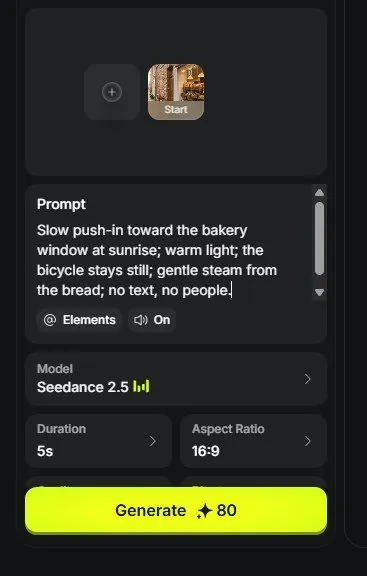
The clip begins as your exact photo and then moves. With an end frame, the last moment matches your second photo.
6Watch out
- The photo's shape wins. A square photo with a 9:16 setting gets stretched or cropped; match the aspect ratio to the picture, or pick auto.
- Describing the photo again in words ("a brown loaf on a wooden counter") often makes the model redraw it slightly differently. Describe the motion only.
7Go further
Now that the picture is fixed, the words that matter are camera, light and motion words. Chapter 1.7 is the vocabulary list.