
1In one sentence
A connector is a bridge between Claude and another app you already use, so Claude can read your email, your files or your calendar and act in them.
2New words
- Connector — the bridge. Google Drive, Gmail, Google Calendar, Microsoft 365, Slack, Notion, Canva and thousands more. Technical people call the standard behind it MCP; you do not need to.
- Permission (also authorize) — the step where the other app asks you to allow Claude in. You can remove it later.
- Read and write — some connectors only let Claude look (read); others let it act (write): send, create, update.
3Why you would want it
Without connectors, you copy things into Claude and copy answers out. With them, you say "find my latest invoice in Drive and summarize it" or "draft a reply to the last email from my accountant" and it happens in place. This is where Claude stops being a chat window and starts being an assistant.
4Try it now
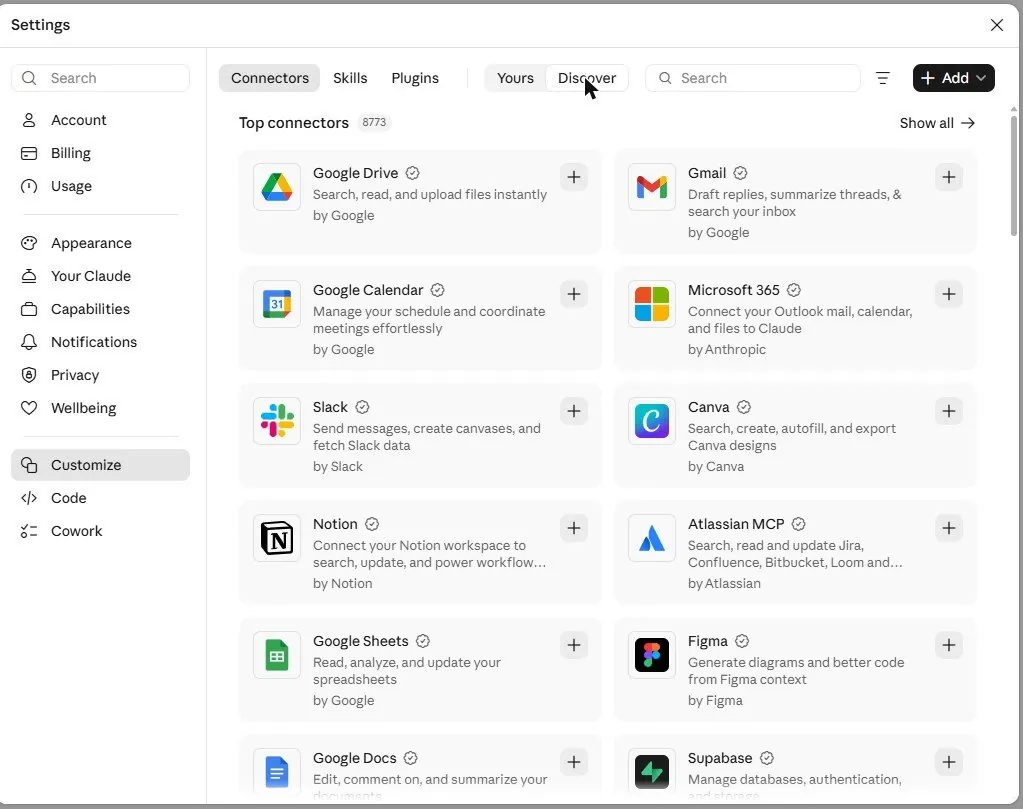
- Click Customize in the left sidebar, then the Connectors tab.
- Find Google Drive (or Gmail, or Microsoft 365) and click the + button. Approve the permission screen from that app.
- In a new chat, ask: Find my most recent document in Drive and tell me what it is about.
5What you will see
The Connectors page lists the most used ones first (over 8,000 were available on the day of testing):
After connecting, Claude reads your real file and answers from it; for actions like sending an email, it shows you the draft and asks before sending. [Picture pending: a connector in use; needs an account to connect.]
6Watch out
- Claude sees only what you allow. Start with one read-only connector and add more when you trust the flow.
- Review anything before it is sent or created. Claude asks; take the second to read.
7Go further
Connect your calendar and ask: What does my week look like, and where are the gaps for deep work? Chapter 2.3 covers the browser, which handles sites that have no connector.