
1In one sentence
You can hand Claude a PDF, a photo, a spreadsheet or a document, and then ask questions about it as if Claude had read it, because it has.
2New words
- Upload (or attach) — putting a file into the chat so Claude can read it. It is the paperclip idea from email.
- PDF — the common format for bills, contracts and reports. Claude reads the text and also the tables and pictures inside.
- Extract — pull specific things out of a document: the dates, the amounts, the names.
3Why you would want it
Reading a 40-page contract, a bank statement or a school report takes an hour. Claude reads it in seconds and answers the question you actually have: what do I owe, what am I agreeing to, what changed since last time. You can also hand it a photo of a menu, a receipt or a whiteboard and ask about that.
4Try it now
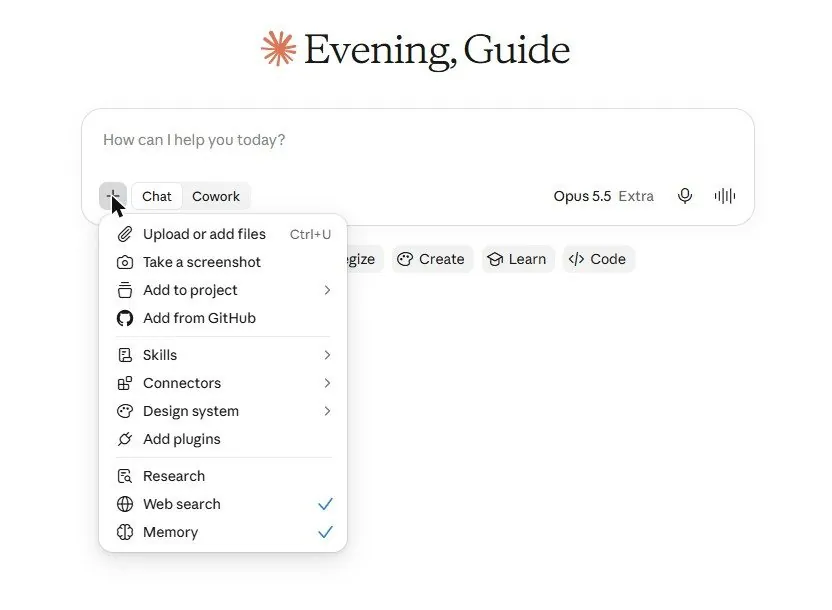
- Open a new chat and click the + button at the bottom left of the typing box.
- Choose "Upload or add files" and pick a PDF from your computer: a bill, a contract, a manual. (You can also drag the file straight onto the chat, or paste a screenshot.)
- Type: What are the 5 most important points in this document, in plain words? Then tell me anything I should be careful about.
- Follow up: What is the total amount, and when is it due? (or whatever matters in your file).
5What you will see
The + menu is where files come in; the same menu also holds skills, connectors and plugins, which later chapters cover:
After you attach a file, it appears as a small card above your message, and the answer quotes the document's own facts, in plain language. [Picture pending: a PDF attached and the five-point summary, to be captured with a sample document.]
6Watch out
- Very long files can be cut off. If Claude seems to miss the end, ask about one section at a time, or say read pages 20 to 30.
- Claude reads what is there; it cannot read a blurry photo or a scanned page with no text layer. If it says it cannot read the file, retake the picture or ask for it in another format.
7Go further
Attach two versions of the same document and ask: What changed between these two? Then read Chapter 1.5 to keep files permanently in a Project so you never attach them twice.