1In one sentence
A preset is a ready-made recipe (a camera move, a visual effect, a trend) that you click instead of describing, and it is the fastest route to a clip that looks professional.
2New words
- Preset — a saved combination of camera move, style and settings. You add your picture or prompt, the preset supplies the rest.
- Camera move — how the virtual camera travels: push-in, orbit, crash zoom, dolly, handheld, drone.
- Effect — a visual trick applied to the subject: a fall, a slide, a zoom into the eyes, and dozens more.
- Visual Effects — the title of the Effects page, where the preset gallery lives.
- Motion Control — a tab on the Video page (and the idea behind Genjutsu) where movement is borrowed from a reference video.
3Why you would want it
A beginner who writes "cinematic camera movement" gets a random camera movement. A preset with a fixed name, such as "Studio Slide" or "Floating Fall", gives the same kind of move every time. For Sam's Bakery, a slow studio slide across a photo of a cake looks like a shot that would need a camera rail in real life.
4The map of presets (November 2026)
| Where | What you find |
|---|---|
| Effects (top bar), page titled Visual Effects | Named presets such as Floating Fall, Studio Slide, Eyes In, Wild Ride, Smash and Grab, usually applied to one picture |
| Cinema Studio | Camera body, lens, lighting, pacing, genre, era and color controls |
| Genjutsu | Movement borrowed from a reference clip, applied to your own character or product (Motion Transfer), or a product, place or character swapped inside an existing clip (Object Swap) |
| Shorts Studio presets | Looks such as Claymation or Bold Caption applied to your own footage |
| Ads Studio and Marketing Studio | Product shots, UGC-style ads, posters |
5Try it now
- Click Effects in the top bar. The page is titled Visual Effects and is a wall of looping examples.
- Hover over a few and watch the previews. Pick a simple one, such as Studio Slide.
- Upload the croissant picture from Chapter 1.3 (or pick it from Assets).
- Leave the prompt short, a croissant on a wooden board, and click Generate.
6What you will see
A grid of looping preset previews, each named:
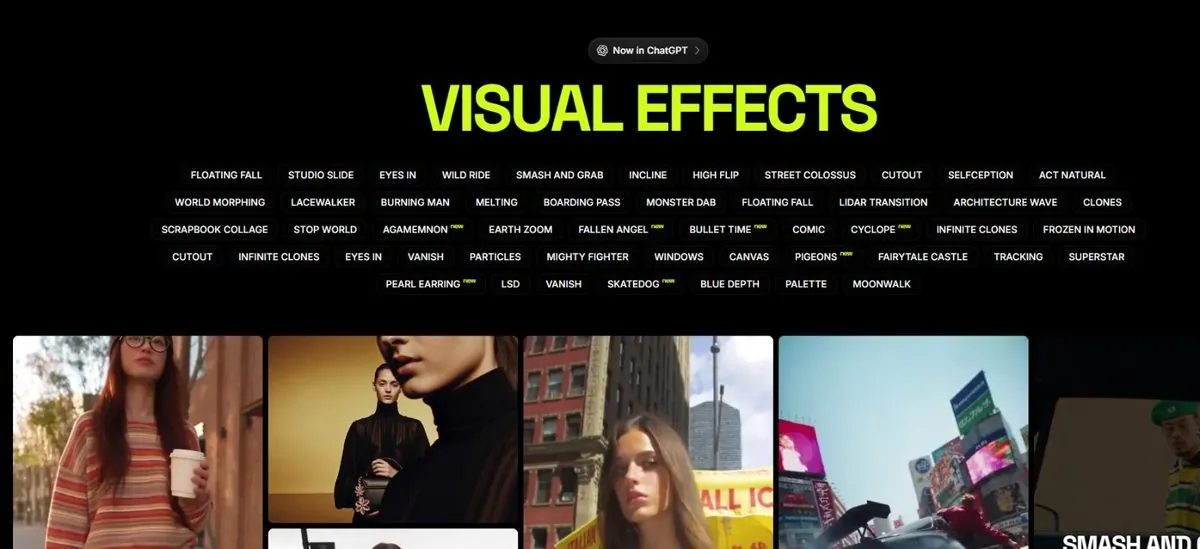
Your croissant with a smooth, repeatable camera move that you did not have to describe.
7Watch out
- Presets expect a certain kind of picture. If yours does not match (a person preset on a cake), the result is odd. Read the preset's description.
- Some presets quietly pick an expensive model. Check the credit number before pressing.
8Go further
Try the same preset on three different pictures and see how consistent it is. Then read Chapter 1.7 for the full picture-to-video workflow.