
1In one sentence
Before Claude touches your files, your browser or your apps, you choose how much it may do on its own, and Claude always asks before deleting anything.
2New words
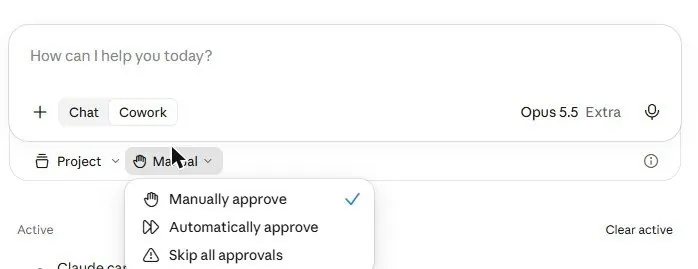
- Permission mode — the setting that says how Claude handles actions that change things. Three choices: Manually approve (ask me every time), Automatically approve (Claude checks each action itself and only stops for risky ones), Skip all approvals (no checks).
- Action — anything that changes the world outside the chat: saving a file, sending a message, clicking a button on a website, moving a document.
- Deletion protection — a rule that Claude must get a clear "Allow" from you before permanently deleting a file, whatever mode you are in.
3Why you would want it
The chapters that follow give Claude real power: it can rename a hundred files, fill a form, send an email. That power is only comfortable if you know the brakes. Manual mode is the brake; Automatic is cruise control with a safety check; Skip is for people who know exactly what they are doing on a copy of their data.
4Try it now
- Open a new chat. (If you still see Chat and Cowork under the typing box, click Cowork. Since chat and Cowork became one Claude, most accounts have no switch: every chat can do this.)
- Click the mode button under the typing box and read the three options. On Pro, Max, Ultra and Team it now starts on Auto; on Enterprise, on Manual.
- Set it to Manually approve for your first few tasks. Switch to Automatically approve once you have watched Claude work a few times.
5What you will see
The mode menu under the typing box:
In Manual mode, Claude pauses before an action and shows a card with Allow once, Always allow for this website, or Deny. This one appeared when a task wanted to open a website:
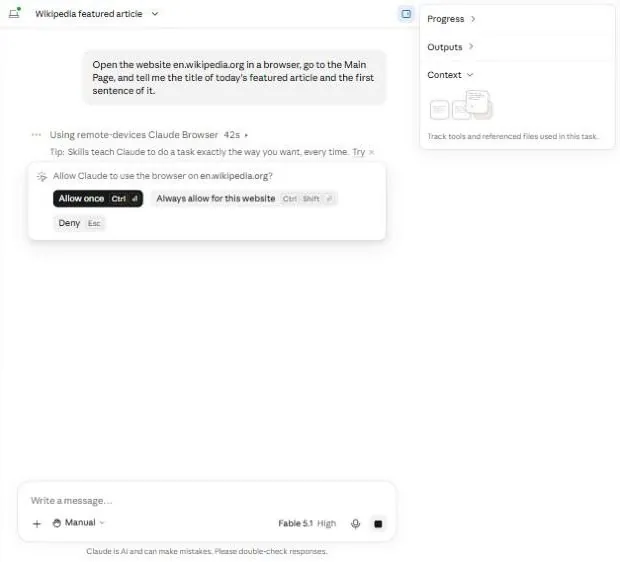
In Automatic mode it works through the task and only stops for things like deleting or sending. Either way, a permanent delete always asks.
6Watch out
- Skip all approvals means exactly that. Use it only on a copy of your files, for a task you have already seen work.
- Automatic mode still sends and creates things once you have said yes to the task. Read the task you wrote before pressing Enter; the brief is the instruction.
7Go further
Keep the habit from Chapter 4.8: for any task that sends or publishes, add to your brief show me before you send. Chapter 2.2 is next, and it starts with a copy of a folder for exactly this reason.